Need save a word document for Sharing a resume, contract, or report? A PDF keeps your formatting locked in place no matter what device the other person opens it on. The good news is that saving a Word document as a PDF takes just a few clicks, and you don’t need any paid software to do it.
This guide walks through every method — on Windows, Mac, iPhone, Android, and iPad — plus answers to the most common questions people run into along the way.
How Do I Convert a Word Doc to PDF?
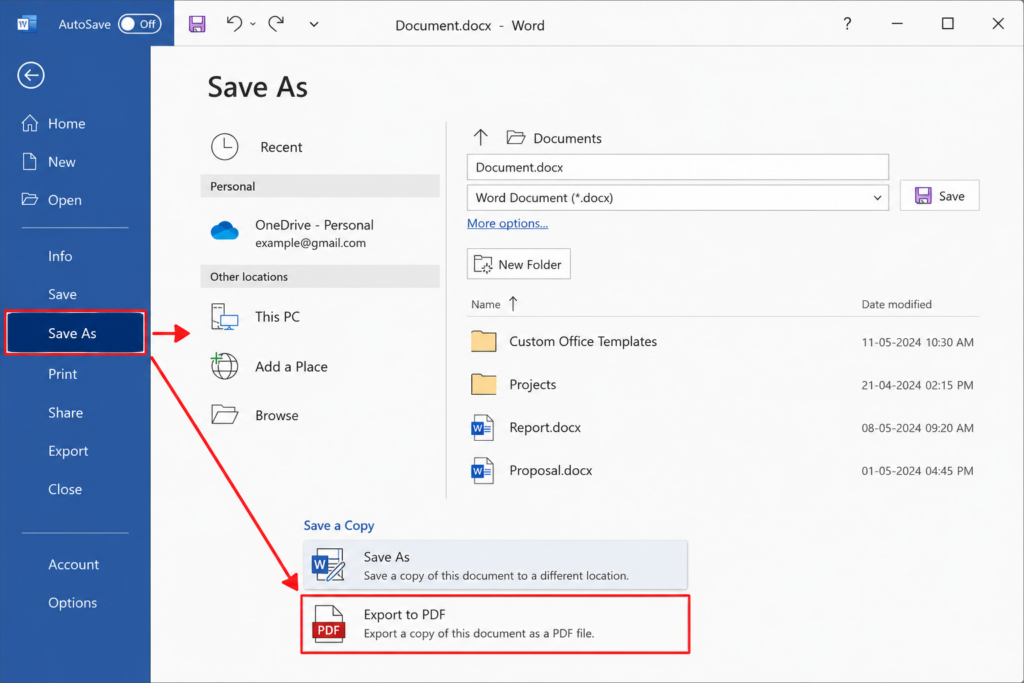
The simplest way to convert a Word doc to a PDF is to use Microsoft Word’s built-in “Save As” or “Export” feature. Word has included native PDF export since 2007 on Windows and since 2011 on Mac, so you don’t need any third-party app for basic conversions.
Here’s the general process that works across most versions of Word:
- Open your document in Microsoft Word.
- Click File in the top menu.
- Select Save As (or Export).
- Choose PDF from the file format dropdown.
- Click Save.
That’s it — Word converts the file instantly while preserving your fonts, images, spacing, and layout.
If you don’t have Word installed, you can also convert a document using Google Docs, LibreOffice, or a free online converter, all covered below.
Why Can’t I Save a Word Document as a PDF?
If the PDF option isn’t showing up or the export keeps failing, it’s usually one of these issues:
- Outdated Word version – Very old versions of Word (pre-2007 on Windows or pre-2011 on Mac) don’t include native PDF export. Update Word or use an online converter instead.
- Corrupted file – A damaged Word document may fail to export. Try opening it in Google Docs or copying the content into a new document.
- Insufficient storage space – PDF export needs temporary disk space to generate the file. Free up some storage and try again.
- Restricted permissions – On work or school computers, admin settings sometimes disable “Save As” formats. Check with your IT admin if this applies to you.
- Add-ins or macros conflict – Some third-party Word add-ins interfere with the export function. Try opening Word in Safe Mode and exporting again.
If none of these apply, closing and reopening Word (or restarting your device) usually resolves temporary glitches.
How Do You Save a Word Document as a PDF?
Here’s the exact process broken down for both major Word versions:
On Windows or Mac (Desktop Word)
- Open the file in Word.
- Go to File > Save As (Windows) or File > Save As (Mac).
- Under “Save as type” (Windows) or “File Format” (Mac), select PDF.
- Choose your save location.
- Click Save.
Using the Export Menu
- Go to File > Export.
- Choose Create PDF/XPS Document.
- Click Create PDF/XPS.
- Select a location and click Publish.
Both routes produce an identical result — a static, non-editable PDF version of your document that keeps your original formatting intact.
How to Save a Word Document as a PDF Free
You don’t need to buy Microsoft Word or any premium software to convert documents. Here are free options:
- Microsoft Word (built-in) – If you already have Word, the Save As PDF feature is completely free and built in.
- Google Docs – Upload your .docx file to Google Drive, open it in Google Docs, then go to File > Download > PDF Document.
- LibreOffice Writer – A free, open-source alternative to Word. Open your file and use File > Export As > Export as PDF.
- Online converters – Sites like Smallpdf, iLovePDF, and Adobe’s free online tool let you upload a Word file and download a converted PDF without installing anything.
For most people, Google Docs is the easiest free route if Word isn’t installed, since it handles .docx files natively and exports clean PDFs in seconds.
How to Save a Word Document as a PDF on Windows
On any modern Windows PC:
- Open the document in Microsoft Word.
- Click File > Save As.
- Choose the location (This PC, OneDrive, or a folder).
- In the “Save as type” dropdown, select PDF.
- Click Save.
Alternatively, use Ctrl + P to open the print dialog, choose Microsoft Print to PDF as your printer, and click Print. This method works even in apps that don’t have a native PDF export option.
How to Save a Word Document as a PDF on a Laptop
The steps are identical whether you’re using a desktop or a laptop — the process depends on the operating system, not the device type. If your laptop runs Windows, follow the Windows steps above. If it’s a MacBook, follow the Mac steps in the next section. Chromebook users should use Google Docs since Word isn’t natively supported on ChromeOS.
How to Save a Word Document as a PDF on Mac
MacBook and iMac users can save a Word file as a PDF in two ways:
Method 1: Using Word
- Open the document in Microsoft Word for Mac.
- Click File > Save As.
- Choose PDF from the File Format dropdown.
- Click Export.
Method 2: Using macOS Print Dialog
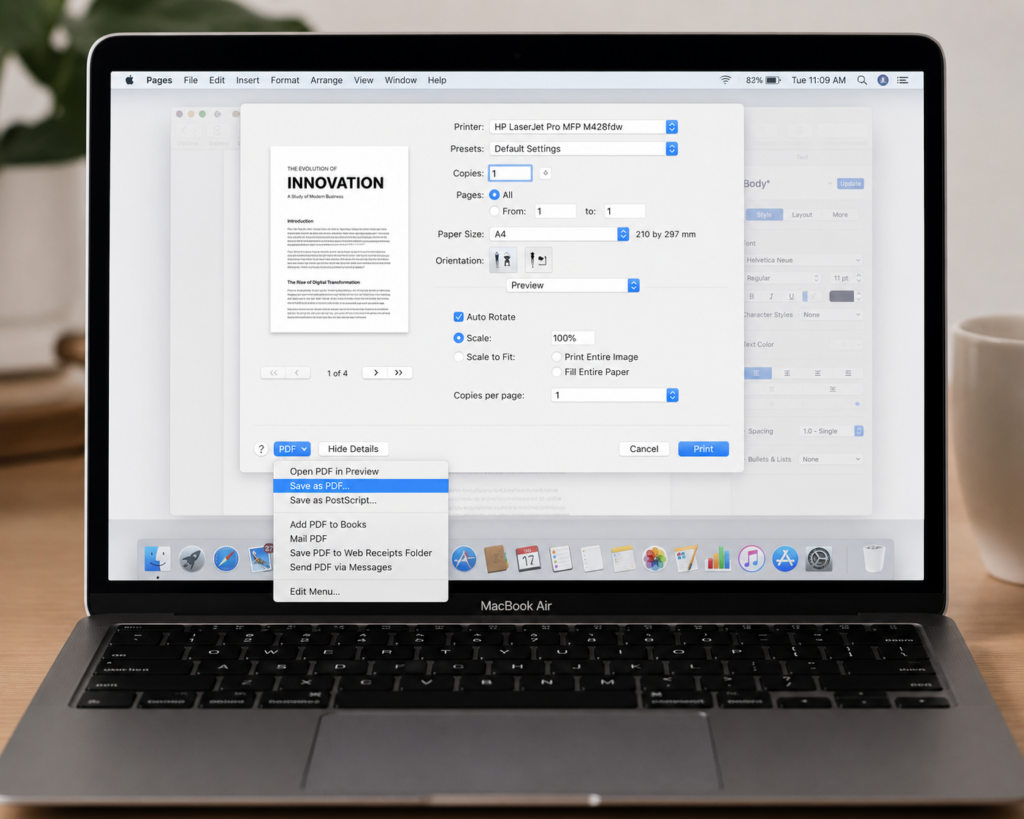
- Open the file and press Cmd + P.
- Click the PDF dropdown in the bottom-left corner of the print window.
- Select Save as PDF.
- Choose a location and click Save.
This second method works for any Mac app, not just Word, making it a handy shortcut to remember.
How to Save Word File as PDF in Windows 11
Windows 11 uses the same Word export process as earlier versions, but here’s the quickest route using the built-in print-to-PDF driver:
- Open the document in Word.
- Press Ctrl + P to open the print menu.
- Under “Printer,” select Microsoft Print to PDF.
- Click Print.
- Choose a save location and file name, then click Save.
This works in Windows 11 without needing Word installed at all — it works from any program that supports printing, including web browsers and PDF readers.
How to Save a Word Document as a PDF on a Phone
Whether you’re on Android or iOS, the Microsoft Word mobile app makes this simple.
How to Save a Word Document as a PDF on iPhone
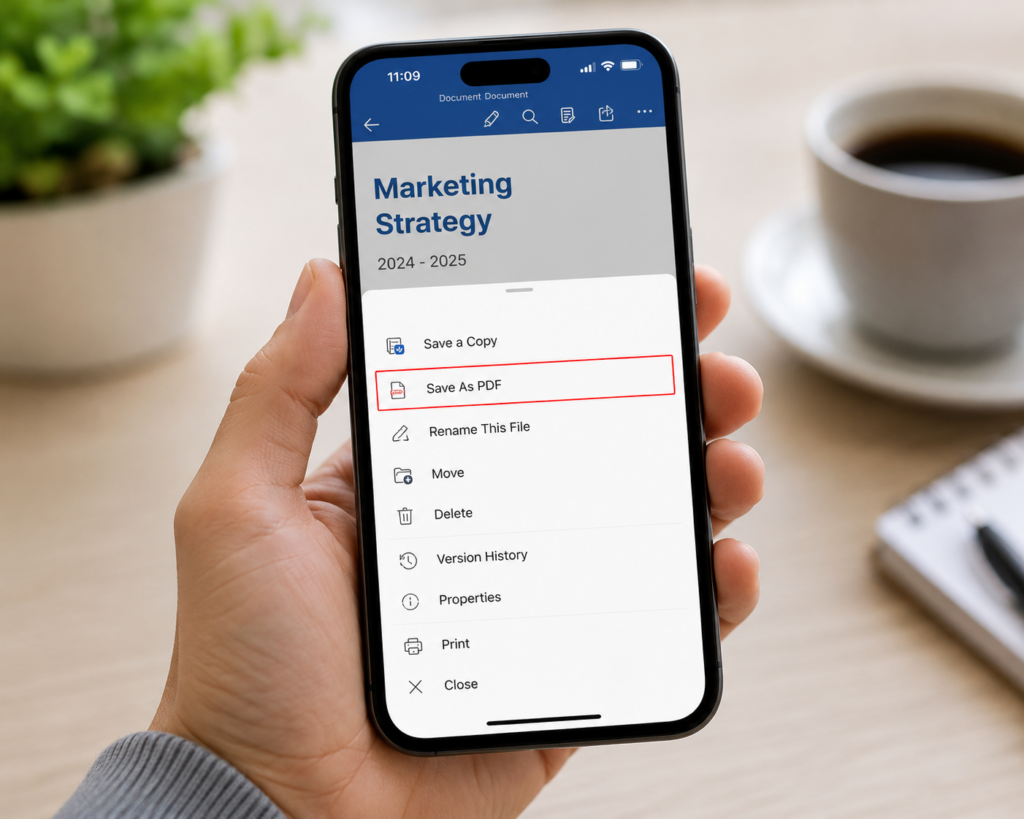
- Open the document in the Word app on your iPhone.
- Tap the three-dot menu (…) in the top corner.
- Tap Save As.
- Under file format, choose PDF.
- Select a save location (iCloud, On My iPhone, or another app) and tap Save.
If you don’t have the Word app, you can also open the file in the Files app, tap the share icon, and choose Print, then pinch outward on the print preview to generate a PDF you can save or share.
On Android
- Open the document in the Word app.
- Tap the three-dot menu.
- Tap Save As or Export.
- Choose PDF.
- Select where to save it.
How to Save a Word Document as a PDF on iPad
The iPad version of Word works almost identically to the iPhone app:
- Open your document in the Word app for iPad.
- Tap the three-dot menu in the top-right corner.
- Tap Export.
- Select PDF Document.
- Choose where to save the file — iCloud Drive, a folder, or share it directly via AirDrop, Mail, or Messages.
You can also use the Files app: open the document, tap the share icon, then tap Print, and use the pinch-to-zoom trick on the preview thumbnail to open it as a full PDF you can save.
Frequently Asked Questions
Does converting a Word document to PDF change the formatting? No. A properly exported PDF preserves fonts, spacing, images, and layout exactly as they appear in Word, since PDF is designed to be a fixed, print-ready format.
Can I convert a Word document to PDF without Microsoft Word? Yes. Google Docs, LibreOffice, and free online converters like Smallpdf or iLovePDF can all convert .docx files to PDF without needing Word installed.
Is saving a Word file as a PDF free? Yes, in every method described above. Word’s built-in export, Google Docs, LibreOffice, and most online converters are free to use for standard file sizes.
Can I edit a PDF after converting it from Word? Not directly. PDFs are meant to be a final, locked version of a document. To make changes, edit the original Word file and re-export it, or use dedicated PDF-editing software.
Final Thoughts
Saving a Word document as a PDF is one of the simplest ways to make sure your file looks the same on every device, browser, and printer. Whether you’re working from a Windows 11 laptop, a MacBook, an iPhone, or an iPad, the built-in export tools in Word (or free alternatives like Google Docs) get the job done in under a minute — no extra software or subscription required.